
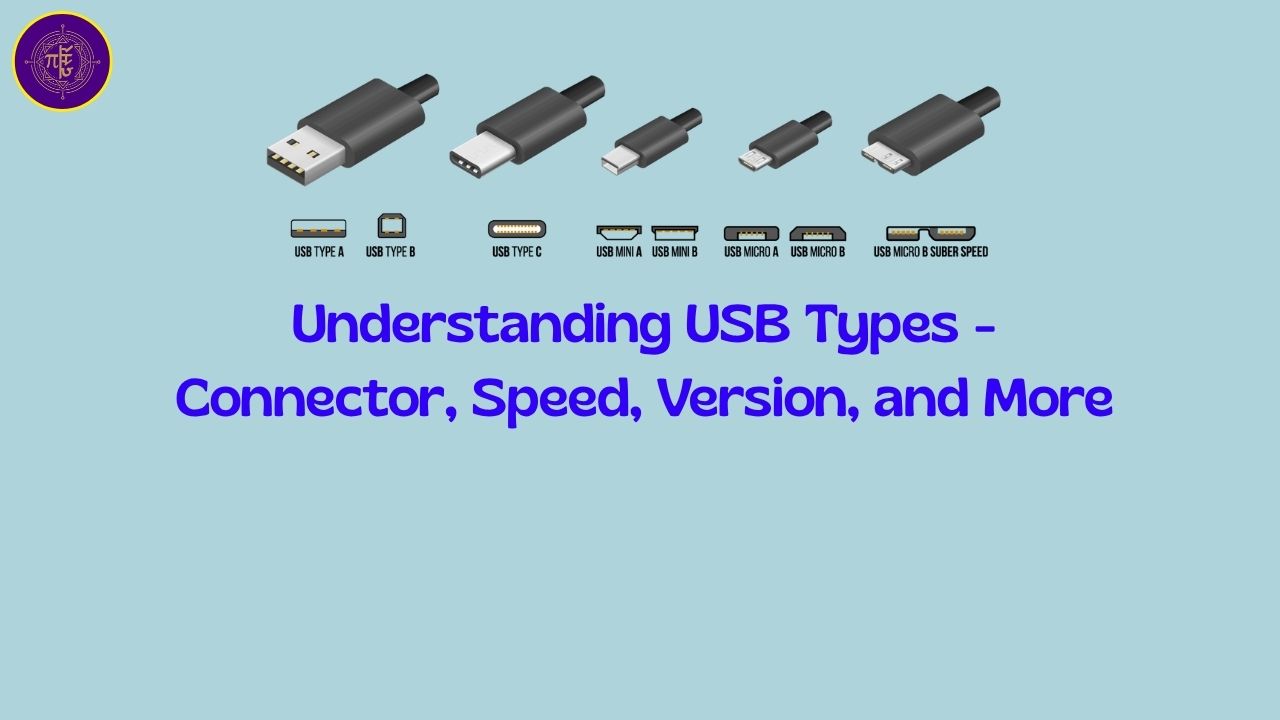
Understanding USB Types#
USB (Universal Serial Bus) is port/interface for data communcation between laptop/destop and external device (harddisk, mice, display, printer etc). There are many types of USB and in this article we are trying to understand those?
USB Connector Types (Physical Shape)#
These define the shape and size of the USB plug and port:
| Type | Image (Conceptual) | Description |
|---|---|---|
| USB Type-A | 🔲 Standard rectangle | Most common, found on desktops, laptops, TVs |
| USB Type-B | ⬛ Square (with bevel) | Used in printers, scanners, older devices |
| USB Mini-B | 🔹 Small trapezoid | Used in older cameras, GPS units |
| USB Micro-B | 🔸 Flatter & thinner | Found on older phones, external drives |
| USB Type-C | ⭕ Oval, reversible | Modern standard – supports fast data, video, charging |
👉 Type-A and Type-C are the most relevant today.
USB & Thunderbolt Standards Overview#
| Standard | Max Speed | Marketing Name | Common Connectors | Video Output | Charging Capability | Notes |
|---|---|---|---|---|---|---|
| USB 1.1 | 12 Mbps | Full-Speed USB | Type-A, Type-B | No | No | Obsolete; used for basic peripherals like keyboards and mice. |
| USB 2.0 | 480 Mbps | Hi-Speed USB | Type-A, Type-B, Mini-B, Micro-B | No | Limited (up to 2.5W) | Widely used; suitable for peripherals like keyboards, mice, and flash drives. |
| USB 3.0 / 3.1 Gen 1 / 3.2 Gen 1 | 5 Gbps | SuperSpeed USB | Type-A (blue), Type-B, Micro-B, Type-C | No | Yes (up to 4.5W) | Enhanced data transfer rates; backward compatible with USB 2.0. |
| USB 3.1 Gen 2 / 3.2 Gen 2 | 10 Gbps | SuperSpeed+ USB | Type-A, Type-C | Optional (via DisplayPort Alt Mode) | Yes (up to 15W) | Doubled speed over previous generation; supports video output with compatible devices. |
| USB 3.2 Gen 2x2 | 20 Gbps | SuperSpeed+ USB 20Gbps | Type-C | Optional (via DisplayPort Alt Mode) | Yes (up to 15W) | Utilizes two 10 Gbps lanes; requires compatible hardware for full speed. |
| USB4 | 20/40 Gbps | USB4 | Type-C | Yes (via DisplayPort 1.4a/2.0 Alt Mode) | Yes (up to 100W via Power Delivery) | Based on Thunderbolt 3 protocol; supports dynamic bandwidth allocation between data and video. |
| USB4 Version 2.0 | 80 Gbps | USB4 Version 2.0 | Type-C | Yes (via DisplayPort 2.1 Alt Mode) | Yes (up to 100W via Power Delivery) | Introduces PAM3 signaling; supports asymmetric data transfer (up to 120 Gbps in one direction). |
| Thunderbolt 3 | 40 Gbps | Thunderbolt 3 | Type-C | Yes (up to dual 4K displays) | Yes (up to 100W via Power Delivery) | Combines PCIe and DisplayPort; supports daisy-chaining up to six devices. |
| Thunderbolt 4 | 40 Gbps | Thunderbolt 4 | Type-C | Yes (up to dual 4K or one 8K display) | Yes (up to 100W via Power Delivery) | Ensures minimum requirements: 40 Gbps speed, dual 4K display support, and charging capabilities. |
| Thunderbolt 5 | 80/120 Gbps | Thunderbolt 5 | Type-C | Yes (up to dual 8K displays) | Yes (up to 240W via Power Delivery 3.1) | Utilizes USB4 Version 2.0; supports asymmetric bandwidth (120 Gbps in one direction). |
Notes:
Connector Types: While USB Type-A is the traditional rectangular connector, USB Type-C is a newer, reversible connector that supports higher data transfer rates and power delivery.([WIRED][1])
Video Output: USB standards that support video output do so via DisplayPort Alternate Mode, allowing the USB port to transmit video signals to external displays.
Charging Capability: Power Delivery (PD) specifications allow for higher power transfer over USB connections, enabling faster charging of devices.([Wikipedia][2])
Port Markings (and What They Mean)#
| Marking | Meaning |
|---|---|
| SS or SS+ | SuperSpeed (USB 3.x) |
| Thunderbolt ⚡ | Thunderbolt 3 or 4 (usually Type-C) |
| DP symbol (🖥) | Supports DisplayPort (video output) |
| Charging Icon (🔋) | Supports charging/power delivery |
Real-World Examples on Modern Laptops#
| Port Type | Use Case |
|---|---|
| USB-A 3.2 | Connecting flash drives, keyboards |
| USB-C (3.2/4/Thunderbolt) | Charging, display output, fast data |
| USB-C PD | Power Delivery – can charge your laptop or phone |
| USB-C w/ DP | Can connect to monitors |
| Thunderbolt 4 (USB-C) | Full-speed docking, external GPU, 4K monitors |
How to Identify What You Have?#
- Look for labels next to ports (like
SS,⚡, orPD) - Check your specs from manufacturer’s website
- Use software like
SpeccyorHWiNFOfor deeper insight
A Diagram#

Credit to https://techterms.com

Comments: